.png)

You decided to leave Zendesk Guide. Maybe the per-agent pricing stopped making sense once the help center grew past a handful of contributors. Maybe you hit the five-level category cap. Maybe the editor stopped feeling like a documentation tool and started feeling like an article field bolted onto a ticketing platform. Whatever the trigger, the question now is mechanical: how do you actually move the content to Document360 without losing search rankings, breaking image references, or shipping six months of accumulated rot into a new tool?
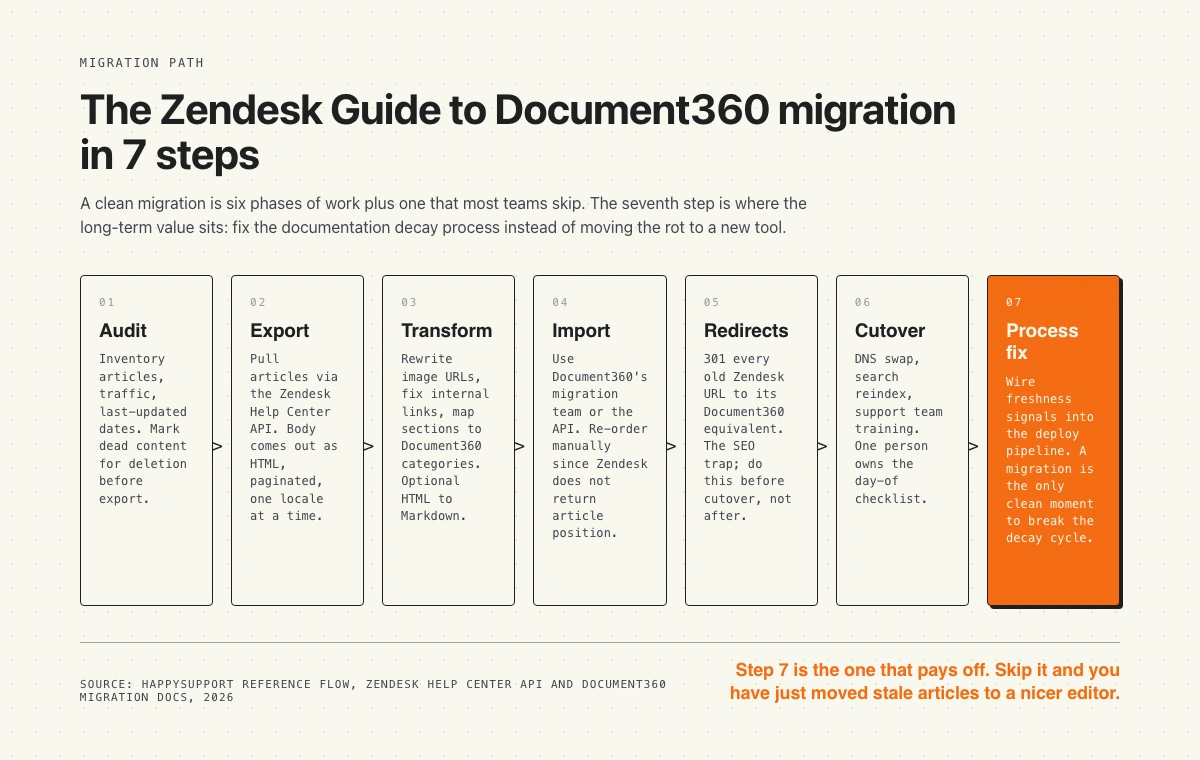
This article is the step-by-step. Seven phases, two to six weeks end to end depending on volume. The first six phases are the migration. The seventh is what most migration guides skip: a clean cutover is the one moment in the year when you can break the documentation decay cycle. Skip that step and you have just paid for a nicer editor while keeping the same stale articles, the same dead links, the same out-of-date screenshots.
The plan below assumes you have somewhere between 50 and 2,000 articles in Zendesk Guide, you have admin access to both platforms, and someone on the team can read JSON. Document360 also offers a fully managed migration service where their team handles the export and transform for you; we will cover when that option makes sense.
Why teams migrate from Zendesk Guide to Document360
The honest framing first. Zendesk Guide is fine. It is not the problem. The problem is that Zendesk priced and built Guide as an add-on to the ticketing platform, not as a documentation product. Three forces typically push teams toward Document360 or a comparable destination.
The first is pricing. Zendesk Guide rides on top of a per-agent Zendesk Suite license. If your help center contributors are not also full-time support agents, you pay for capacity you do not use. Document360 prices on team-member seats plus reader capacity, which usually lands cheaper for documentation-heavy teams. The exact numbers depend on volume, so re-fetch both vendors' pricing pages before committing. For the current Zendesk side, see Zendesk Guide pricing.
The second is the documentation feature set. Document360 ships category nesting seven levels deep versus Zendesk's five. The root-level category cap is 1,000 versus Zendesk's 100. Document360 also exposes content reuse primitives (templates, snippets, variables, glossaries) that Zendesk Guide does not. If your help center is growing past the point where ad-hoc copy-paste is enough, the structural difference matters.
The third is the editor. Zendesk Guide has a single rich-text editor. Document360 offers both Markdown and a WYSIWYG editor, plus a category drag-and-drop tree that is easier to reorganize than Zendesk's section-and-category model. Engineering teams that contribute articles tend to prefer Markdown round-tripping; marketing and support teams tend to prefer WYSIWYG; Document360 lets both coexist.
What Document360 will not solve: documentation that goes stale because nobody knows when the product changed in a way that broke the article. That problem follows the content. Switching platforms does not fix it. We come back to this in step 8.
Pre-migration audit: what to keep, what to delete
The first piece of work happens inside Zendesk, before you touch any export tool. Run an audit and cut hard.
Pull a list of every published article with its view count for the last 90 days and its last-updated date. Zendesk surfaces both in the Guide analytics dashboard. Sort the list and bucket the articles into four groups:
- Keep as-is. High traffic, recently updated, factually correct against the current product. These are the articles you migrate first because they carry the search equity.
- Keep and refresh. High traffic but the product or pricing has changed since the article was last edited. Mark these for a rewrite during the transform step.
- Archive. Low traffic, no recent edits, references features that no longer exist or pricing that has changed twice. Do not migrate these. They drag down search authority and frustrate readers who find them.
- Delete entirely. Internal drafts that never shipped, duplicate articles, abandoned experiments. Delete them in Zendesk before the export, not in Document360 after.
A typical SaaS help center has 20 to 40 percent of articles in the bottom two buckets. Cutting that volume before migration is the single highest-leverage thing you do in this entire process. The downstream work (transform, redirect mapping, QA) all scales linearly with article count.
While you are auditing, also flag the articles that have inbound backlinks from third-party sites. Use Ahrefs, Semrush, or the free Google Search Console "Links" report. These articles need redirect priority later: they carry external link equity that has to be preserved.
Step 1: Export articles from Zendesk Guide
Zendesk does not ship a native one-click export for the Help Center. You have three real options.
Option A. The Zendesk Help Center API. This is the official path and the most reliable. The endpoint is documented at developer.zendesk.com. The two endpoints you care about:
The first lists every article in your help center. The second lists only articles changed after a Unix epoch timestamp, which is useful for incremental re-syncs after the initial export. Both endpoints paginate; cursor pagination is the preferred method and returns up to 1,000 articles per page. Authentication is via API token or OAuth. You need agent or admin scope to hit the incremental export endpoint.
Each article object includes id, title, body (HTML, not Markdown), locale, section_id, author_id, label_names, html_url, position, and timestamps. The full schema is in the Zendesk developer docs.
A 30-line Python script gets the job done. Loop through the pagination cursor, write each article to disk as JSON (preserves all metadata for downstream transforms) and as HTML (for the body content). Zendesk publishes a reference implementation in their backup walkthrough.
Option B. The Swifteq Help Center Export app on the Zendesk Marketplace. A free app, no code required. Exports to CSV. The limitation is that CSV flattens nested structure (sections, categories) and image references, so you will rebuild some of that metadata in the transform step. Fine for small help centers (under 100 articles), painful at scale.
Option C. Document360's managed migration service. Submit a request inside the Document360 portal (Settings, Knowledge base portal, Migrate content). Their team uses the same Zendesk Help Center API plus their own tooling to pull the content. You provide read access via a Zendesk API token. This is the lowest-effort path; the tradeoff is timeline (typically a few weeks of iteration) and less control over the transform decisions.
Whichever path you pick, run the export against a single locale at a time. If your help center is multilingual, do the primary locale first, validate the full pipeline end to end, then re-run for each translation locale.
Step 2: Transform content
The export gives you raw content. The transform step turns it into something Document360 can ingest cleanly. Four substeps happen here.
Format conversion. Zendesk article bodies are HTML. Document360 accepts HTML and Markdown. If your team uses the Markdown editor, run the HTML through a converter (pandoc, turndown, or any HTML-to-Markdown library). The conversion is not perfect: Zendesk's rich-text inserts include callouts, alerts, and accordion blocks that have no clean Markdown equivalent. Decide in advance whether you preserve those as raw HTML inside Markdown (Document360 supports this) or rewrite them to native Document360 blocks.
Image URL rewriting. Every image in a Zendesk article body references a Zendesk CDN URL (theme.zdassets.com or similar). These URLs continue to work after migration, until they do not. Zendesk CDN entries can be cleaned up or expire over time, and once your subscription lapses the URLs disappear entirely. Rewrite every image reference to a new Document360-hosted URL during transform. The mechanics: download every image referenced in any article body, re-upload to Document360 (or your own CDN), and find-and-replace the URLs in the article HTML.
Internal link rewriting. Articles link to other articles. In Zendesk those links look like https://yoursubdomain.zendesk.com/hc/en-us/articles/123456-article-slug. After migration the Document360 URLs use a different path structure. Build a mapping table during the import (Zendesk article id to Document360 article id) and run a search-and-replace across every article body. Skip this step and you ship a help center where every cross-reference is broken.
Category mapping. Zendesk uses a three-level model (Category, Section, Article). Document360 uses a category tree up to seven levels deep. Flatten or expand as needed. The most common pattern: each Zendesk Category becomes a top-level Document360 category, each Zendesk Section becomes a subcategory, and articles slot under the subcategory. If your Zendesk help center used sections inconsistently, this is the moment to fix the taxonomy. For the broader question of how to structure the destination, see how to build a SaaS knowledge base.
Step 3: Import into Document360
Document360 offers two import paths.
The managed migration service is the path most teams take. Submit the migration request, provide your Zendesk API token and target structure, and Document360's team handles the actual upload. The process runs in iterative batches with QA checkpoints. Their team confirms the timeline and the redirect rules before flipping the new help center live.
The DIY path uses Document360's Public API. You authenticate via an API token (Settings, API tokens), then POST articles to the categories you created in the previous step. The API accepts article body as HTML or Markdown. You loop through your transformed articles and create them programmatically. This is the option that gives you full control over the order, the metadata, the slug naming, and the timing.
One important Document360 quirk: Zendesk does not return article ordering through the Help Center API, so Document360 cannot preserve the order your articles appeared in within each section. After import, walk through every category and re-order articles manually using Document360's drag-and-drop tree. For a help center with 500 articles this is a 4 to 6 hour task. Plan for it; do not assume the import will get it right.
Once articles are in, run a sanity check before moving to step 4. Pick the 20 highest-traffic articles, open each in the Document360 portal, and verify that images render, internal links resolve, and the body formatting matches the original. If anything looks off, fix the transform script and re-import that batch. It is much cheaper to fix during this checkpoint than after redirects are live.
Step 4: Handle images and attachments
Images are the failure mode that bites teams who treated the migration as a content-only exercise. Three rules.
Rehost everything. The temptation is to leave images on the Zendesk CDN and just point Document360 at them. The URLs work; the references resolve. Until they do not. Zendesk's CDN URLs are tied to your subscription. Cancel Zendesk and every image breaks. Even if you keep both subscriptions, the CDN URLs are not part of any contract guarantee; Zendesk can rotate them. Rehost everything as part of the transform.
Use descriptive filenames. Zendesk auto-generates image filenames like 1234567890123_image.png. Document360 uses the original filename in the asset URL. If you batch-rename images during rehost (article-slug-step-1.png, article-slug-step-2.png), you pick up a small SEO benefit and your future-you can find images by name. Cheap step, real long-term value.
Audit alt text. Zendesk does not enforce alt text on uploaded images. A migration is a forced read of every image reference. Add alt text to images that have none. This is the same forced-walk principle as the article audit in step 0: the migration is the only time you read every image.
Attachments (PDFs, ZIPs, downloadable templates) follow the same rule. Rehost them, do not hot-link. Document360 supports file attachments natively. Upload during transform, rewrite the references in the article body, archive the originals.
Step 5: Map categories and permissions
The category tree mostly gets resolved in step 2, but permissions are a separate problem. Zendesk Guide uses a permission group model: each article belongs to a permission group that determines which users can read it. Document360 uses a workspace and reader-group model, with finer control over which articles which reader groups can see.
If your Zendesk help center was entirely public, this step is trivial. Skip ahead. If you have any restricted content (partner docs, employee-only articles, premium-tier-only articles), map permission groups before redirects. The mapping is rarely one-to-one. Document360's reader group concept lets you express patterns that Zendesk's permission groups could not, which is part of why teams move; you also have to define the new structure rather than copying the old one.
Verify by spot-checking. Log in as a sample restricted reader and confirm they see only what they should. Log in as a public reader and confirm they cannot see restricted articles. Do this on the staging help center before cutover, not after.
Step 6: URL redirect strategy
This is the step that determines whether your search rankings survive. Get it wrong and the help center loses six to twelve months of accumulated SEO equity overnight.
Every article in Zendesk has a URL like https://yoursubdomain.zendesk.com/hc/en-us/articles/123456-article-slug. After migration, the same article lives at https://docs.yourcompany.com/category/subcategory/article-slug. Every old URL must 301-redirect to the new URL. Without this, Google sees the old URLs return 404 and the search engine flushes the rankings within weeks.
Three mechanics to set up.
Mapping table. During import, capture the Zendesk article id and the Document360 article URL for every article. The simplest format is a CSV: zendesk_url, document360_url. This is your source of truth for the redirect rules.
Subdomain decision. Most teams move the help center from support.yourcompany.com (Zendesk's host pattern) to docs.yourcompany.com or keep the same subdomain. If you keep the same subdomain, you swap the DNS and the redirects live at the new host. If you change the subdomain, you keep the old subdomain pointing at a static redirect host that issues the 301s, and the new subdomain points at Document360.
Implementation. Document360's managed migration team handles this if you go with the service. For DIY, set up Cloudflare Page Rules, a small Node or Python redirect service on Vercel or Cloudflare Workers, or static redirects on whatever CDN you use. The exact tool matters less than the requirement: every /hc/en-us/articles/{id} URL returns a 301 to its Document360 counterpart, and the response is the proper 301 status code (not a 302, not a meta refresh, not a JavaScript redirect).
Then submit your new sitemap to Google Search Console. The reindex picks up the redirects, Google flushes the old URLs from its index, and the rankings move to the new URLs. The full transition takes two to six weeks.
Step 7: Cutover plan
The day-of checklist. One person owns this list; do not split ownership.
- DNS cutover. Switch the help center subdomain to point at Document360 (or to your redirect service if the subdomain changed).
- Redirect verification. Curl the top 50 Zendesk article URLs and confirm each returns a 301 to the right Document360 URL. Spot-check the long tail.
- Search reindex. Submit the new sitemap to Google Search Console. Submit the Bing equivalent if you care about Bing traffic.
- Internal communication. Tell the support team the help center moved. Update internal links in your ticketing system, your Slack channels, your onboarding docs. The team will spot broken internal references for the first week; have someone collecting and fixing them.
- External communication. If you have a status page or a customer announcement channel, post a one-paragraph note about the migration. Customers will notice the URL change in their saved bookmarks.
- Monitoring. Watch Google Search Console for crawl errors, watch your help center analytics for traffic drops, watch the support inbox for "where did X go" tickets. The first 72 hours are when you catch the issues.
- Keep Zendesk running for 30 days. Do not cancel Zendesk Guide the day of cutover. Keep it active for 30 days as a fallback in case the migration surfaces issues you missed. After 30 days of clean traffic on Document360 and no major issues, cancel.
If the migration is large (1,000+ articles, multiple locales, complex permission setup), run a staging migration first. Document360 supports a sandbox workspace where you can dry-run the entire pipeline before cutover. Worth the time.
Step 8: Post-migration process fix
Here is the step most migration guides leave out. You did all that work. You moved the articles. The taxonomy is cleaner. The editor is better. Six months from now, will the articles still be accurate?
If you change nothing about how the team writes, reviews, and updates documentation, the answer is no. The articles will go stale at the same rate they did in Zendesk, because the problem is not the editor. The problem is that nobody knows when the product changed in a way that broke the article, and there is no signal in the team's workflow that flags it.
A migration is the rare moment when you can break this cycle. The team is paying attention to the help center. The articles are in front of someone. The category tree is being touched. Use the window.
Three process changes worth installing during the migration window.
Article owners. Every Document360 category gets one named human as owner. Their job is to be accountable for whether the articles in that category are correct. Not to write them all, just to be the person who notices when something goes stale and who triggers the rewrite. Without an owner, every article is everyone's problem and therefore no one's.
A freshness cadence. Pick a re-review cycle that matches your product velocity. Weekly shippers should re-review every article quarterly. Monthly shippers can stretch to twice a year. Annual shippers can stretch to yearly. The cadence does not have to be a full rewrite; it can be a 10-minute pass where the owner walks through the article and checks whether anything is now wrong. For the broader cost of skipping this, see documentation decay hidden cost.
Change-signal. The hardest one and the most valuable. When the product changes (a feature ships, a setting moves, a pricing tier changes), some signal needs to reach the documentation team automatically. Most teams achieve this through release-note review meetings or a shared Slack channel. A small group of teams achieve it through tooling that compares the live product against the documentation. For the upstream version of this idea, see self-updating help center.
What gets lost in this migration
Be honest with the team about what does not survive the move. Surface the list before cutover, not after.
The view-count and analytics-history loss surprises teams the most. There is no way around it; the data stays in Zendesk. If you need historical traffic data for any specific article, export it from Zendesk Guide analytics before you cancel. Document360 analytics start counting from cutover day.
Common migration mistakes
Five failure modes worth naming so you avoid them.
Migrating everything. Skipping the audit and importing all 2,000 articles, including the dead ones. You pay for the storage, you pay for the QA time, you pay for the cognitive load of a bloated category tree, and the articles you should have deleted continue to rank for searches that send the wrong customer to the wrong answer.
Hot-linking images. Leaving image references pointing at the Zendesk CDN. Works on day one; breaks on day 180 when the Zendesk subscription lapses or the CDN URLs rotate. Always rehost.
Skipping redirects. Cutting over without 301s from the old URLs. The help center loses six to twelve months of search equity, customers with bookmarks hit 404s, internal links from your product UI and emails break. The redirect work is the highest-leverage 4 hours in the entire migration.
Cancelling too early. Pulling the plug the day of cutover. You lose the fallback if something is wrong, you lose access to the analytics history you forgot to export, you lose the ability to compare original article state against the migrated version. Keep Zendesk running for 30 days minimum.
Content-only thinking. Treating the migration as a content-only exercise. Skipping step 8. Six months later the team realizes the articles are just as stale in Document360 as they were in Zendesk, only the editor is nicer. The migration was an opportunity to fix the underlying decay process. The opportunity does not come back without another migration.
When to use Document360's managed migration vs DIY
Quick decision rule.
Use the managed migration service if: you have under 500 articles, your team does not include anyone comfortable with the Zendesk API, you have a fixed deadline (most often a Zendesk renewal date you do not want to hit), or you are migrating multiple locales in parallel.
Use the DIY path if: you have over 500 articles and want fine-grained control over the transform, you have a developer on the team who can write a Python script, you need to apply non-trivial content transforms during the migration (rewrites, deduplication, taxonomy restructuring), or you want to learn the underlying mechanics for future migrations.
Hybrid is common. Document360's team handles the export and the bulk import. Your team handles the transforms (image rehost, internal link rewriting, taxonomy decisions). This often lands as the fastest path for help centers in the 200 to 800 article range.
If you are still in the evaluation phase and have not committed to Document360 yet, the head-to-head comparisons that matter: HappySupport vs Document360 for the doc-accuracy angle, Document360 vs Helpjuice for the dedicated KB platform side, and HappySupport vs Zendesk if you have not yet ruled out staying. The Help Scout Docs vs Zendesk Guide comparison covers another common path out of Zendesk.
Where HappySupport fits in this picture
We build HappySupport because the migration story above is real and the underlying problem is shared. Teams leave Zendesk Guide because the editor and the pricing pinched. They move to Document360 because Document360 is a better documentation tool. Six months later, the articles are still going stale.
HappySupport sits beside your ticketing system (Intercom, Zendesk, Help Scout, HubSpot, Front, Freshdesk) as the help center layer that stays accurate when the product changes. The category tree and the editor are not the problem; that is a solved problem. The problem is the signal from the product back to the documentation, and that is the layer most help centers do not have.
If you are mid-migration and the doc-accuracy question is on your mind, the comparison page is at HappySupport vs Document360. If you are upstream of the migration decision and still figuring out the right destination, the broader question of how the help center stays accurate after the move is covered at self-updating help center.