.png)

You want to export your Zendesk Help Center. The reasons usually fall into three buckets: you are migrating off Zendesk Guide, you want a real backup the vendor cannot accidentally delete, or you are running an audit and need the articles on your own machine to grep through. The bad news is that Zendesk does not give you a one-click export button. The good news is that the Help Center API will give you everything that matters, if you know which endpoints to call and what gets dropped along the way.
This guide covers three methods: the official Help Center API (recommended), the manual CSV approach from the Zendesk UI (limited), and third-party migration tools (fastest if you can pay). It includes a starter Python script you can run against your own subdomain, the gotchas around attachments and image URLs, and the list of things that no method exports cleanly: search synonyms, view counts, ratings, permission settings, and (depending on your plan) the full comment history.
Pick the method that matches your situation, then read the "what gets lost" section before you trust the output.
Three methods to export Zendesk Help Center
The right method depends on whether you have engineering time, whether you need full fidelity, and whether you trust a third party with the dump. Here is the short comparison.
The API is the only path that returns the full article body, the section and category hierarchy, and the locale metadata in one structured dump. Everything else is either a subset or a paid translation layer on top of the same API.
Method 1: Help Center API (recommended)
The Help Center API is what Zendesk's own backup guide recommends. It is REST, JSON, basic-auth with an API token, and it returns articles, sections, categories, and translations as separate endpoints. You will need an admin role on the Zendesk account to create the token, and you will run into rate limits if you do not paginate properly.
Setup: API token and rate limits
Generate an API token in the Zendesk Admin Center under Apps and integrations, Zendesk API, Settings tab, enable token access, and add a token. Save it. You will authenticate as {email_address}/token in basic auth, with the token as the password.
Rate limits vary by Zendesk Suite plan, and the Help Center API counts separately from the Support API:
The numbers are per Zendesk's published rate limit documentation, verified 2026-05-23. If you hit the limit, the API returns a 429 response with a Retry-After header. Respect the header, do not retry in a loop without backoff.
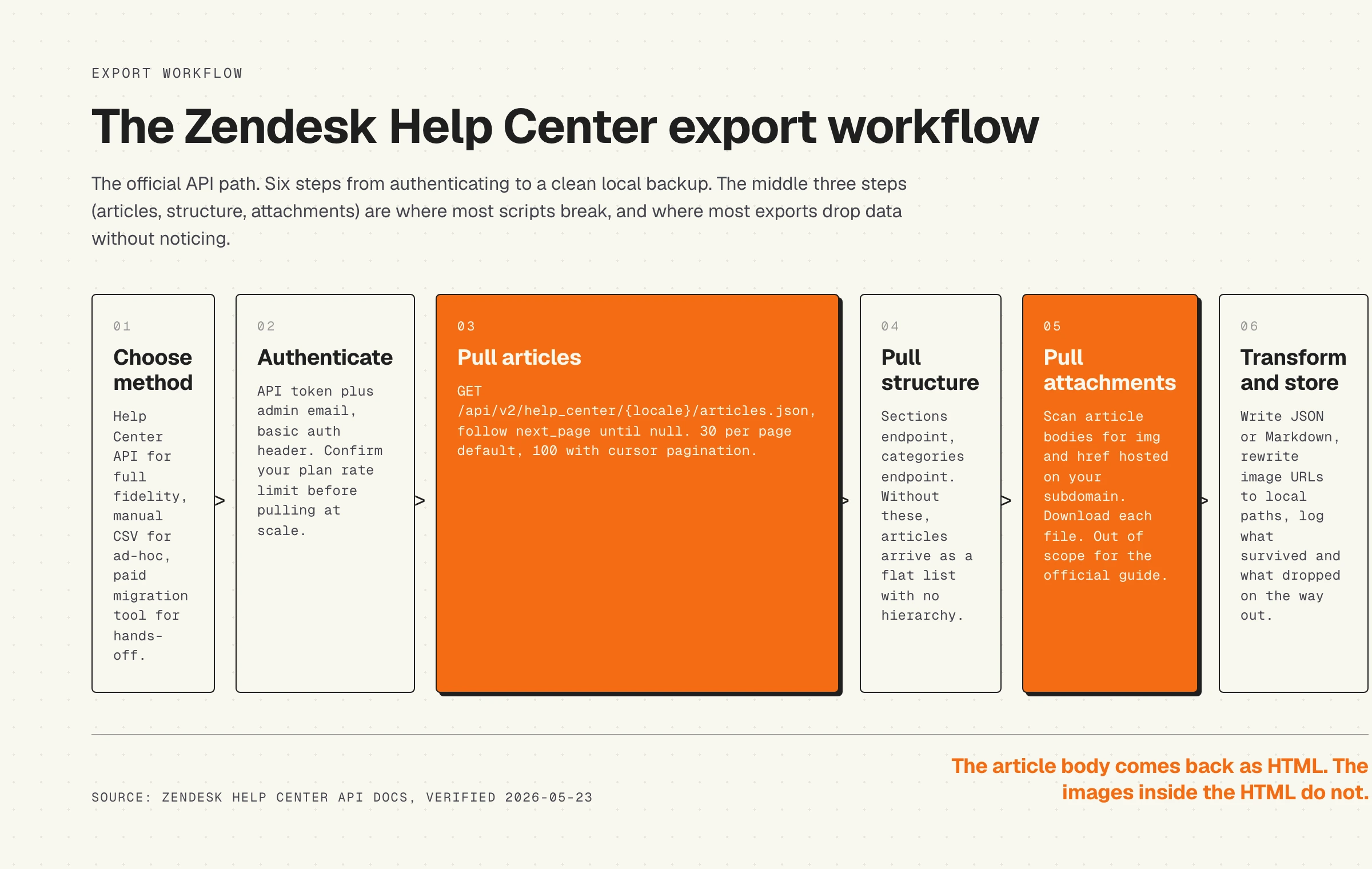
Pull articles
The base endpoint is GET /api/v2/help_center/{locale}/articles.json on your Zendesk subdomain. For example, https://yoursubdomain.zendesk.com/api/v2/help_center/en-us/articles.json. The locale segment is optional for admins and agents but required if you are calling as an end user.
The default response returns up to 30 articles per page with a next_page URL in the response body. To raise the page size and switch to cursor pagination, add ?page[size]=100. Cursor pagination is the preferred method per Zendesk's own docs for any help center over a few hundred articles.
A starter curl call:
Each article object returns id, title, body (HTML), author_id, created_at, updated_at, edited_at, draft, promoted, position, section_id, locale, vote_sum, vote_count, label_names, and a few more. The body field is the HTML rendered into the help center, including all inline images and links.
Pull sections and categories
Articles arrive as a flat list. To rebuild the hierarchy, you need two more endpoints:
GET /api/v2/help_center/sections.jsonreturns the sections, each with a parent category_id.GET /api/v2/help_center/categories.jsonreturns the top-level categories.
Pull these once. Build a lookup of section_id to section name and category, then enrich each article record with that hierarchy before writing the backup. If you skip this step, the export is a long list of titles with no structure, which is fine for grep but useless for migration.
Pull attachments and images
This is where most export scripts quietly fail. The article body field is HTML. Images inside the HTML are <img> tags pointing at URLs on your Zendesk subdomain, in the form https://yoursubdomain.zendesk.com/hc/article_attachments/{attachment_id}. Those URLs are tied to the article in Zendesk's content store. If the article is deleted in Zendesk later, the image URL stops resolving.
Zendesk's official backup guide is explicit on this point: backing up the images is outside the scope of the article. You have to do it yourself. The pattern is:
- For each article, parse the body HTML and pull every
<img src="...">and any<a href="...">that points to an attachment URL. - Download each file separately. Use the same basic auth credentials.
- Save the file to a local
attachments/folder, named by attachment_id and original filename. - Rewrite the body HTML to point at the local path.
Skipping this step is the most common reason a Zendesk export looks complete but breaks the moment the source account is canceled.
Code template: full export script
Below is a starter template. It pulls articles with cursor pagination, pulls sections and categories, downloads attachments, and writes everything to a local directory. Treat it as a working starting point, not a production system. Verified against the Zendesk Help Center API docs on 2026-05-23.
Run it with the three environment variables set. For a thousand-article help center on the Growth plan, expect roughly two to three minutes for the article pull, plus whatever time the attachments take depending on file sizes. The script is deliberately small. It does not retry on transient errors beyond the 429 case, it does not handle multilingual locales beyond the one passed in, and it does not preserve draft articles separately. Add those when you need them.
Method 2: Manual CSV export from the Zendesk UI
The Zendesk UI does not have a help center export button, but it does have a content filter inside the Guide admin that you can use to view article lists and copy the metadata into a spreadsheet. This is useful for an audit or a content inventory, and almost useless for a migration.
The path: in your Zendesk account, open Guide admin, click the Arrange content view, filter by section or category, and you get a list of article titles with author, last edit date, and status. There is no native "download" button. You either screenshot the view or use a browser extension to scrape the table. Some teams paste the visible rows into Google Sheets.
What you get from the UI export approach: titles, authors, dates, statuses, section names. What you do not get: article bodies, attachments, vote counts, labels, draft content, translation states, or anything inside the HTML body of an article. This method is fine if you want a list of "what articles do we have" for a quarterly review. It is not a backup.
Method 3: Third-party migration tools
If you are migrating to a specific destination platform and you do not want to write the script, the Zendesk Marketplace and the broader migration tool ecosystem covers most paths. The trade-off is cost and trust: these tools authenticate to your Zendesk account and your destination account, then copy data between them.
- Help Desk Migration. Most common third-party tool for Zendesk Guide migrations. Pricing depends on volume, typical range is $500 to $5,000 for help center migrations, more for ticket data on top. Supports most destinations: Help Scout, Freshdesk, HubSpot, Intercom, Document360.
- Zenplates Help Center Import. Zendesk Marketplace app, $99 one-time. Mostly used for the reverse direction (importing into Zendesk) but has read access for exports too. Limited destination coverage.
- kBackup. Knowledge base backup tool, mentioned in Zendesk's own community as a third-party option. Snapshot model: pay for a periodic backup of help center content.
- Import2. Generalist data migration tool, covers Zendesk along with other helpdesks. Quote-based pricing.
Use a third-party tool when you have a known destination, a fixed timeline, and limited engineering bandwidth. Use the API when you want full control, when you need a backup that does not depend on a third party staying in business, or when the destination is not on the tool's supported list. The API also gives you a more honest accounting of what survived the transfer, because you wrote the mapping yourself.
What gets lost in every method
This is the section to read before you commit to any export. The Help Center API returns the article body, the structural metadata, and the per-article statistics. It does not return everything in the help center. Manual CSV and third-party tools tend to lose even more. The list:
- Search synonyms. Configured in Guide admin under Search settings. These are tuning data the search engine uses to match queries to articles. Not exported by any method. Manually screenshot or copy them before you migrate.
- Article view counts. The article object returns vote_sum and vote_count, but not the page view metric you see in Guide analytics. Page views live in the Insights or Explore product, which is a separate export path.
- Permission settings. Restricted articles have a user_segment_id, but the user segment definition (who is in the segment, by tag or org) is not part of the article export. Pull
/api/v2/help_center/user_segments.jsonseparately if you need this. - Ratings and comments. The API exposes ratings as part of the article object. Comments are on a different endpoint,
/api/v2/help_center/articles/{id}/comments.json, and only the Guide Enterprise plan exposes comment threads in full. Lower plans return limited data. - Version history. Zendesk keeps a version log for each article that you can see in the editor. The API does not expose that history. Once exported, you have the current version of the body and nothing earlier.
- Theme and branding. CSS, templates, custom JavaScript, header and footer HTML. Some plans (Professional and above) let you import and download the theme via the Guide admin. Other plans require you to copy the code manually into a text editor.
- Article aliases and redirects. URL aliases configured for SEO or migration backstops are not part of the article object. Plan to recreate them at the destination.
- Article subscriptions. End users who subscribed to an article or a section for notifications. The subscription list is in the API, but it is a separate endpoint and almost no migration tool pulls it.
Print this list. Walk it through with your team before the migration window opens. The most common post-migration support tickets are not about missing articles, they are about missing synonyms, missing redirects, and missing per-article permission rules that quietly stop working when the content lands in the new system.
After the export: what to do with the data
Once the JSON dump is on your machine, the work is not done. The export is the input to one of three follow-up workflows.
For a backup, store the dump somewhere you control (S3, your own object store), encrypt it, and add it to your retention schedule. Rerun the export script monthly or after major content updates. Test the restore path once a year. A backup you cannot restore is not a backup.
For a migration, the next step is to map Zendesk fields to the destination platform's fields. Categories map to whatever the destination calls top-level groupings. Sections map to subgroups or tags. The HTML body usually round-trips fine into Markdown via a converter like Pandoc or html2text, but be careful: Zendesk's HTML often contains <div> wrappers and inline styles that do not survive the conversion cleanly. Spot-check the first ten articles before you bulk import.
For an audit, the JSON is the input to whatever analysis you wanted. The common questions: which articles have not been edited in 12 months, which have low vote_sum but high vote_count (high views, low helpfulness), which point at URLs that 404 now, which use product terminology you have since changed. We wrote about the cost of stale content in the hidden cost of documentation decay, and the export is the file you grep through to quantify it for your own help center.
The deeper question is what comes next. Re-importing a stale Zendesk export into a new help center on the same content model gets you the same problem in a new wrapper. The articles drift out of sync with the product the same way. A self-updating help center closes the loop by tying article content to the product code that ships behind it, so the body stays current when the product changes. If you are exporting because the Zendesk content has gone stale faster than your team can fix it, the export is the start of the migration, but the destination architecture is the part that decides whether the new help center stays useful in six months.
For a side-by-side cost view if Zendesk's plan pricing was part of the reason for the export, our writeup on Zendesk Guide pricing walks through the tiers and the maintenance overhead that pushes most teams to evaluate alternatives.
Frequently asked questions
What is the best method to export a Zendesk Help Center?
The Help Center API is the best method for full fidelity. It returns articles, sections, categories, and the metadata you need for a migration or backup. Manual CSV from the UI is fine for a quick title-and-author audit. Third-party tools like Help Desk Migration are best when you have a known destination platform and no engineering capacity to write the script yourself.
What gets lost when you export a Zendesk Help Center?
Every method loses search synonyms, article view counts (those live in Insights, not the article object), the user-segment definitions behind permission settings, version history, theme and branding code on plans below Professional, URL aliases and redirects, and end-user subscriptions. The API gets the body, the structure, and the per-article statistics. Everything else needs to be exported manually or rebuilt at the destination.
How long does the Help Center API export take?
A help center with 1,000 articles takes roughly two to three minutes on the Growth plan (400 requests per minute), excluding attachments. On the Team plan (200 requests per minute) it takes about twice as long. Attachments add time depending on file sizes and how many images are inline in your articles. A 5,000-article help center with heavy image use on the Enterprise plan typically finishes inside 30 minutes.
Is there a built-in export button in Zendesk Guide?
No. Zendesk explicitly states the platform "does not have a prebuilt tool to export articles." The official recommendation is the Help Center API. The Guide UI provides a content filter view that can be used as a manual audit, but there is no native bulk download option for the article bodies.
Can I export a Zendesk Help Center without admin access?
You need at least an admin role on the Zendesk account to generate an API token. Agent-level accounts can sometimes call the API with their own credentials and read public articles, but they cannot access the full content of restricted articles or generate the token in the first place. If you do not have admin access, ask whoever does to either create the token for you or run the export and hand you the dump.