

Creating user manuals with AI in 2026 is no longer a niche workflow. AI platforms can generate comprehensive manuals, training manuals, and how to guides from a short outline in minutes, with consistent formatting and multiple languages baked in. The catch: static manuals built once and forgotten become useless within a quarter as products evolve. Engaging user manuals that survive multiple releases combine AI-generated drafts with high quality images, step by step instructions, clear instructions, and a version control discipline that keeps each new version of the product matched to a new version of the manual. This guide walks through how to create user manuals (and how to create clear, user friendly training documentation) using AI, with practical tips on tooling, layout, templates, export formats, and compliance.
The audience for this guide is product managers, product teams, technical writers, customer support leads, and new team members who inherited a documentation backlog. The guidance applies whether you are using AI to draft a single product user manual for a SaaS app, write clear step by step instructions for an enterprise tool, or build comprehensive manuals for an industrial product. Most teams need the same things: a template, an AI partner that follows their brand voice, prior knowledge of the product captured somewhere, and a process for keeping content updated as the product evolves.
One non-negotiable for 2026: do not input personally identifiable information into unapproved AI tools. Public sector professionals must use vetted AI tools according to local frameworks. Guides for public agencies must align with local AI action plans. Internal compliance teams should publish an approved-tool list before authors start drafting. Public agencies cannot ship a user manual that leaks PII into a third-party LLM, and private-sector regulated industries (healthcare, finance, defense) face the same constraint.
What "create a user guide with AI" actually means
The phrase covers four distinct workflows, often combined. (1) Drafting: AI generates first drafts of sections from a short outline, real examples, or product specifications. (2) Formatting: AI ensures consistent formatting across long text, headings, bullet lists, and step-by-step procedures. (3) Translation: AI translates the same source into multiple languages, with terminology consistency. (4) Maintenance: AI flags sections that need updates when the product changes, surfacing version drift before customers hit it.
The AI does not replace technical writers, product managers, or product teams. It accelerates the most repetitive parts of the work (first drafts, formatting, layout) and frees humans to focus on accuracy verification, real examples, and step by step instructions that only a subject matter expert can author. Most teams using AI for user manuals end up with a hybrid workflow: AI drafts, human reviews, AI translates, human verifies, AI maintains, human approves changes.
Step 1. Collect the inputs before opening the AI tool
Garbage in, garbage out. Before opening ChatGPT, Claude, or any AI platform, collect all technical specifications and existing documentation. The minimum input set:
- Product specifications. Feature list, UI screenshots, API references, configuration options.
- Existing documents and prior versions. Older user manuals, internal runbooks, support FAQs, release notes.
- Brand voice guide. Tone, vocabulary, terms to avoid. Without this, the AI's output reads like every other AI-generated doc.
- Target audience profile. Beginner versus advanced users, technical background, primary language, accessibility needs.
- Approved tool list. For regulated industries and public agencies, the list of AI tools cleared for sensitive content.
- High quality images and screenshots. Pre-captured visuals or, better, a recording tool that captures workflows as you click.
Tools for capturing input: Scribe and HappyRecorder both record workflows as you click; HappySupport's HappyRecorder captures every step as DOM and CSS selectors (not pixels), which means the AI can also flag drift when the underlying product changes. A browser extension for capturing screen recordings makes the input-collection phase 10x faster than writing from memory.
Step 2. Pick the right AI platform for the manual you are creating
Not all AI platforms produce equal user manuals. The choice depends on the manual type and constraints.
For public agencies and regulated industries, the approved-tool list often narrows the choice to Microsoft Copilot for M365 (if the agency runs M365), self-hosted models, or vendors with signed BAAs / data processing agreements. Public sector professionals must use vetted AI tools according to local frameworks; verify your jurisdiction's AI action plan before authoring sensitive documents.
Step 3. Prompt strategy that produces a user-friendly manual
The single biggest failure mode in AI user manual creation is asking the model to write the whole manual in one prompt. Output quality collapses past a few thousand words. The fix: iterate drafts by asking AI to create outlines and sections sequentially. Start with the outline. Approve the outline. Then have the AI write one section at a time.
A practical prompt sequence for creating a user manual:
- Outline: "Given these product specifications and this target audience, draft a manual outline with sections, subsections, and one-line descriptions of each. Use plain language. Target reading level: 8th grade. Reading time goal: 15 minutes."
- Approve outline. Edit titles, reorder sections, mark sections that need product manager input.
- Section drafts: "Write section 2 of the outline. Use the brand voice guide. Include 5-7 step by step instructions. Reference the screenshots I provided. Output as markdown."
- Critique pass: "Read your draft. Identify three places where the wording could be clearer for a beginner user. Simplify complex terms using analogies and plain language. Address potential user errors clearly."
- Final QA: Human reviewer verifies accuracy against the product, fixes hallucinations, adds real examples from real product usage.
Visuals should be clear and relevant to enhance understanding. AI cannot generate screenshots that match your live product; that requires either pre-captured high quality images or a recording tool that grabs them as you walk through the workflow. HappyRecorder and Scribe both handle this; HappyRecorder additionally tags each screenshot with the DOM and CSS selectors of the captured UI elements, which enables drift detection later.
Step 4. Templates and layout that scale
Bit.ai provides templates for structuring user manuals and FAQs that work as a starting point for most use cases. Beyond Bit.ai, every major AI platform now ships templates for common manual types: software user guides, hardware operating instructions, training manuals, internal SOPs, troubleshooting guides. Pick the template, fill the placeholders, iterate.
A workable user manual template for a software product:
- Cover page with product name, version, last-updated date, intended audience.
- Quick start (the 5-minute onboarding path).
- Core concepts (terms, definitions, mental models).
- Step by step guidance for the top 8-12 user tasks, each with screenshots and clear instructions.
- Troubleshooting tips for the top 5-10 known error states.
- Frequently asked questions.
- Glossary and reference (API endpoints, settings, integrations).
- Change log (what changed in this new version).
For non-software products (industrial equipment, consumer hardware, training manuals), the structure shifts: safety warnings move up front, assembly or operation instructions become the core, and the troubleshooting and maintenance sections expand. The principle holds: outline first, AI drafts sections, humans review and verify.
Step 5. Make the manual user friendly
A user friendly manual is one users actually open. AI-generated drafts often read like extruded mediocrity: dense paragraphs, vague guide users phrases, no real examples. Fix this in the review pass. Practical rules:
- Replace long text blocks with bullet points and numbered step by step instructions wherever possible.
- Simplify complex terms using analogies and plain language. Define acronyms on first use.
- Address potential user errors clearly. Every step that can fail should include a "If this happens, do X" line.
- Include real examples from real product usage. AI cannot invent these; pull them from support tickets or customer interviews.
- Verify that the manual matches the live product. AI drafts often hallucinate UI labels that do not exist.
User manuals must address potential user errors clearly. The "Common errors" or "Troubleshooting tips" section is the part most AI drafts get wrong; the model defaults to generic advice unless you feed it real error messages from your product. Collect the top 10 error messages from your help desk and ask the AI to draft troubleshooting steps for each one.
Step 6. Multiple languages and translation
AI platforms generate user manuals in multiple languages with consistent formatting and terminology if you provide a glossary up front. Workflow: write the source manual in your primary language (typically English), pass it to the AI with the glossary, request the same content in target languages, review with native speakers, publish. Document360's multi-language support and HappySupport's one-click translation across 10+ languages reduce the operational burden.
Translation quality has improved dramatically since 2024 but still requires native-speaker review for terms of art, regulatory language, and consumer-facing brand voice. Plan for a 1-2 hour native review per language per 100 pages of manual. The cost is much lower than a full human translation, but it is not zero.
Step 7. Version control and updating manuals
Static manuals built once and never updated become useless within a quarter. Version control prevents outdated user manuals from confusing users. Every release that touches the documented surface should trigger an update.
Two patterns work:
- Manual update cadence. The documentation owner reviews and updates the manual on a schedule (per release, monthly, quarterly). Works for slow-moving products with a dedicated owner.
- Automatic drift detection. The tool detects when product UI or code changes invalidate the manual and flags affected sections. HappySupport's HappyAgent does this via GitHub Sync; the manual stays synchronized with the product code automatically.
For SaaS teams shipping weekly, automatic drift detection is the only realistic approach. Manual cadence works for hardware manuals (version every 6-12 months) but breaks for software products that release weekly.
Step 8. Export, distribute, and update content
The export format depends on the audience. Software product user manuals usually live in a customer-facing help center (HTML, with the help desk integration); hardware manuals export to PDF for shipping with the product; training manuals often export to PDF plus an internal learning management system.
Modern AI documentation platforms support multiple export formats: HTML for web publishing, PDF for offline distribution, Markdown for version control in Git, DOCX for collaboration with non-technical reviewers. HappySupport, Document360, GitBook, and Notion all support these.
The update process is what most teams skip and then regret. Update content on the same cadence as the product. Track which sections users actually read; the rest can be lower priority. Most teams find that the top 10 sections of a user manual drive 80% of reads; focus update budget there.
Compliance and security considerations
For public agencies, regulated industries, and any organization handling sensitive customer data, AI user manual workflows must comply with local frameworks.
- Do not input personally identifiable information into unapproved AI tools. If a draft contains real customer names, account numbers, or other PII, use only approved tools with signed DPAs.
- Public sector professionals must use vetted AI tools according to local frameworks. US federal agencies have GSA-approved lists; EU public agencies follow their national AI action plans; healthcare entities require HIPAA-compliant tools.
- Guides for public agencies must align with local AI action plans. Verify with your CISO or compliance team which AI tools are cleared for which content types.
- Self-hosted models are the strictest option, used by defense, intelligence, and some healthcare organizations. Operationally heavy but necessary for the most sensitive content.
For most private-sector SaaS teams, the practical floor is: cloud AI tools with contractual no-training (OpenAI, Anthropic via Microsoft, Google) plus internal approval workflow for any document containing customer data. Do not skip this step.
Practical workflow: from blank page to published manual
A worked example. Imagine you are documenting a new feature in a SaaS product. The team ships the feature on Tuesday; the manual needs to be ready by Thursday.
- Monday (pre-ship). Use a browser extension or HappyRecorder to record the feature walk-through as you build it. Collect product specifications, edge cases, and known error states.
- Tuesday morning. Feed the recording transcript plus specs into your AI platform. Generate the outline. Approve.
- Tuesday afternoon. AI drafts sections in order. You review and edit each section. Add real examples from QA tickets.
- Wednesday morning. AI translates to additional languages. Native speakers review.
- Wednesday afternoon. Add screenshots from the recording. Verify against the live product.
- Thursday morning. Publish to the help center. Update the changelog. Notify support staff.
- Thursday afternoon. Monitor first-day engagement and failed-query log. Update the manual based on what users actually search for.
This is the cadence most teams using AI achieve once the workflow is in place. The first manual takes longer; subsequent manuals get faster because the templates, brand voice, and tools have already been set up.
Key features your AI user manual workflow needs
The key features that separate a workflow that ships from one that stalls: (1) AI-powered drafting (sometimes written ai powered) that respects your brand voice (ai-powered tooling without brand-voice control produces extruded prose); (2) the ability to combine multiple tools (recording, drafting, translation) without copy-paste friction; (3) knowledge sharing built in, so the support team and product team see the same draft as it evolves; (4) verification gates ensuring users never see hallucinations; (5) automation to update manuals when the product ships a new release; (6) a common questions repository that the AI can pull from to keep tone consistent. Tools like HappySupport bundle these capabilities; assembled stacks (ChatGPT + Loom + Bit.ai + Notion) require manual stitching but work for teams already invested in those platforms.
How HappySupport accelerates user manual creation
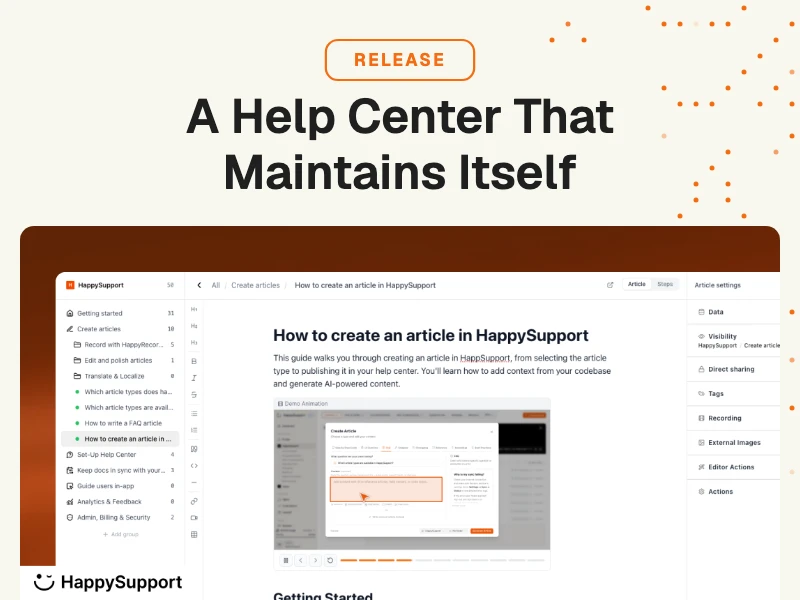
HappySupport combines the four AI documentation workflows in one platform. The HappyRecorder Chrome extension captures workflows as you click and creates draft user manuals automatically. The HappyAgent GitHub Sync layer keeps published manuals synchronized with the product code: when a button moves or a workflow changes, the affected sections are flagged for review. HappyWidget delivers the manual contextually inside the product, so new team members and users access the right step at the right time. EU hosting (Netcup, Neon, AWS Frankfurt) plus contractual no-training with OpenAI and Anthropic make HappySupport a fit for regulated industries.
For software product teams that want to create user manuals at the speed product evolves, HappySupport closes the maintenance gap that other AI tools push back onto the team. See how self-updating help centers work.
Frequently asked questions
What is the best AI tool to create a user manual in 2026?
Depends on the manual type. ChatGPT or Claude for general writing. Microsoft Copilot for M365 if your documents live in Word/SharePoint. HappySupport for software product user manuals that need to stay current. Bit.ai for non-software product templates. Notion AI if your workspace is Notion.
Can AI write a complete user manual without human review?
No. AI drafts the first 70%; humans verify accuracy, add real examples, ensure compliance, and approve. Skipping human review produces hallucinations, missing edge cases, and brand voice drift. The hybrid workflow (AI drafts, human verifies) is the only one that scales.
How do I keep an AI-generated user manual current?
Two options. (1) Manual cadence: update on a schedule tied to product releases. Works for slow-moving products. (2) Automatic drift detection: tools like HappySupport flag affected sections when the product code changes. Works for weekly-shipping SaaS where manual cadence breaks down.
What about compliance and PII?
Do not input personally identifiable information into unapproved AI tools. Public sector professionals must use vetted AI tools according to local frameworks. Guides for public agencies must align with local AI action plans. Use only approved tools with signed DPAs for sensitive content. Verify with your CISO or compliance team before authoring documents that include customer data.
How much should I expect to pay for AI user manual tooling?
$20-30/user/month for ChatGPT or Claude or Microsoft Copilot Business. $8-15/user for Bit.ai or Notion AI. 299 EUR/month flat for HappySupport Professional. Quote-only for Document360. The cheaper tools handle drafting and translation; the more expensive ones add maintenance and version control on top.