Most chrome extension help center recorders take screenshots. Click record, click through your product, get a step-by-step guide with annotated images. Scribe, Tango, Guidde, Iorad: all variants of the same architecture. Screenshots stitched together with text descriptions.
This article explains why that architecture creates a maintenance trap, what the alternative looks like, and how to evaluate a chrome extension help center recorder for a SaaS product that ships weekly. The short version: pixel screenshots cannot detect UI changes. DOM/CSS-based recording can. The difference shows up three months after launch when the help articles start describing buttons that no longer exist.
What is a chrome extension help center recorder
A chrome extension help center recorder is a browser extension that captures user actions in a web app and converts them into help articles, user guides, or step-by-step instructions. The user clicks record, performs the workflow they want to document, and the extension produces a draft article with screenshots, annotations, and step descriptions. The output goes into a knowledge base, a Notion page, a PDF, or any other destination the team uses for help articles.
Two architectures dominate the category. Pixel-based recorders capture the browser screen as images. DOM/CSS-based recorders capture the underlying HTML structure and CSS selectors of the elements the user clicks. Both produce help articles. Only one survives a UI change without manual rework.
Two architectures: pixel screenshots vs. DOM/CSS references
Every chrome extension help center recorder falls into one of two camps. Understanding the difference is the entire point of evaluating these tools.
Pixel-based recording
The recorder takes a screenshot at every click. Output is an image file plus a text description. The image has no awareness of what is in it: the system does not know the screenshot contains a "Save" button, a navigation menu, or a form field. It is a flat picture.
Tools in this category: Scribe, Tango, Guidde, Iorad, Loom (for video), most of the chrome web store screenshot extensions. The category leader by share is Scribe, with Tango as the closest alternative for AI annotation. The output is fine for short-lived documentation: an internal SOP, a customer-success deliverable that ships once. It breaks for living documentation that has to track a moving product. A comparison of tools that turn screen recordings into help guides lists the current options with prices.
DOM/CSS-based recording
The recorder captures the structural reference of every element the user interacts with: the HTML tag, class names, IDs, CSS selector path, and surrounding text. The screenshot is rendered from the DOM at view time, not stored as a static image. The system knows the captured element is "the Save button in the Settings sidebar," not just a 24x24 pixel block.
Tools in this category are far fewer. HappySupport's HappyRecorder is the primary example. The output looks similar to pixel-based recording at publish time (the user sees a screenshot and steps), but the underlying data is fundamentally different. When the underlying UI changes, the system can detect it.
Why pixel screenshots break with weekly releases
According to the GitLab DevSecOps Survey, 65% of teams release weekly or more frequently. For a SaaS team shipping weekly, every release is a potential drift event for help articles built on pixel screenshots. Three failure modes show up:
- Button rename. "Save" becomes "Save changes." The pixel screenshot still shows the old label. Customers following the help article cannot find the button. Confusion tickets follow.
- Layout shift. The settings panel moves from a sidebar to a top tab. Every screenshot capturing the old layout is silently wrong.
- Feature reorganization. A workflow that used to be three clicks becomes four. Screenshots between clicks no longer match the current product.
The Consortium for Service Innovation's KCS methodology research suggests the typical useful life of a knowledge article is around six months. For weekly shippers, that compresses to closer to three months. Pixel-based help articles age silently because the screenshot still looks fine in the CMS preview. The drift only becomes visible when a customer opens a ticket that starts with "I followed the help article and it does not work."
How DOM/CSS recording works
The technical model is straightforward. When the user clicks an element during recording, the chrome extension captures four things: the CSS selector path (.settings-panel > button.save), the element's text content ("Save"), the element's role and accessible name (for ARIA contexts), and the surrounding context (parent elements, sibling elements). All of that gets stored as structured data, not as a pixel image.
At view time, the help article renders a screenshot from the captured DOM reference. The screenshot looks identical to a pixel-based screenshot from the user's perspective. The difference shows up when the underlying UI changes:
- The system can re-resolve the CSS selector against the current production UI and detect when the captured element no longer exists or has moved.
- It can detect text changes. If the captured button said "Save" and the production button now says "Save changes," that is a flag.
- It can flag layout shifts when the parent or sibling elements no longer match the recorded reference.
This is what enables automated drift detection. A pixel screenshot has nothing to compare against. A DOM/CSS reference has a structural fingerprint that can be checked against any version of the live UI.
Top use cases for help center recorders
Five use cases account for most chrome extension help center recorder usage. The right tool depends on which use case dominates.
Customer-facing help articles
Step-by-step instructions for end users to complete tasks in a SaaS product. Highest volume use case for SaaS support teams. This is where DOM/CSS recording delivers the biggest payoff because these help articles need to track the product over months and years.
Internal SOPs and onboarding
Process documentation for new employees. Pixel recording is fine here because the underlying tool (often a third-party product like a CRM) does not change much, and the SOP can be re-recorded if it does.
Customer-success deliverables
One-off workflows recorded for a specific customer. Ship-and-forget content. Pixel recording works because the deliverable does not need to stay current.
Sales enablement and demo guides
Walkthroughs for sales teams. Lifespan typically matches the sales cycle. Pixel recording is acceptable for short-cycle products.
Technical support knowledge base
Internal articles for support agents to reference during tickets. These articles need to be accurate to the current product. DOM/CSS recording reduces the maintenance burden on the support engineering team.
What to look for when evaluating a chrome extension help center recorder
Eight criteria separate a tool that works for production help center use from one that works for one-off documentation. Run each candidate through this list:
- Recording architecture. Pixel-only or DOM/CSS-aware. Ask the vendor directly. If they cannot answer, it is pixel-only.
- UI change detection. Does the tool tell you when a captured help article no longer matches the live product? This is the freshness signal.
- Output format. Embedded in a help center, downloadable PDF, exportable HTML, or all three. Most teams need help center embedding plus exportable HTML for repurposing.
- Annotation control. AI-generated step descriptions are useful as a draft but rarely publish-ready. The tool needs to make editing fast.
- Branding. Logo on screenshots, color customization, embed without vendor branding. Important for white-label or customer-facing use.
- Team workflow. Multi-user editing, approval flow, shared library. Single-user tools fail on teams larger than three.
- Integration with knowledge base. Direct publish to the CMS, API, or copy-paste into the help center editor. Direct publish is faster.
- Pricing model. Per-seat, per-recording, or flat. Per-recording is dangerous for teams that document heavily, because the cost scales with effort.
Workflow comparison: pixel-based vs. DOM/CSS-based
The day-to-day workflow looks identical for the first round of help articles. Both architectures let the user click record, perform the workflow, and publish. The divergence happens at month three, when the product has changed.
Pixel-based recorder workflow at month three
- A customer files a ticket: "I followed the help article and the button is not where you say it is."
- Support agent confirms the article is wrong. Logs the broken article.
- Someone manually opens the recorder, re-records the workflow, and publishes the new version.
- Repeat for every other help article that depends on the same UI element.
- Repeat for every workflow change in every release.
The cost compounds. A team with 100 help articles based on pixel screenshots can easily spend a full week per quarter on re-recording. Most teams skip this work. The articles drift, the help center loses trust, customer satisfaction drops.
DOM/CSS-based recorder workflow at month three
- The system detects that a captured element's text changed in the production UI.
- Affected help articles are flagged automatically with a "review" status.
- The author opens the flagged article. The screenshot has already been re-rendered against the current UI. The text description is the only thing that needs review.
- Author confirms or edits the description, publishes the updated article.
- Time per drift event drops from full re-recording to a one-minute review.
The aggregate difference for a team with 100 help articles is the difference between treating maintenance as a quarterly project and treating it as a per-release review. The articles stay current. Customer queries stop including "I followed the help article and it does not work."
How HappySupport's chrome extension recorder works
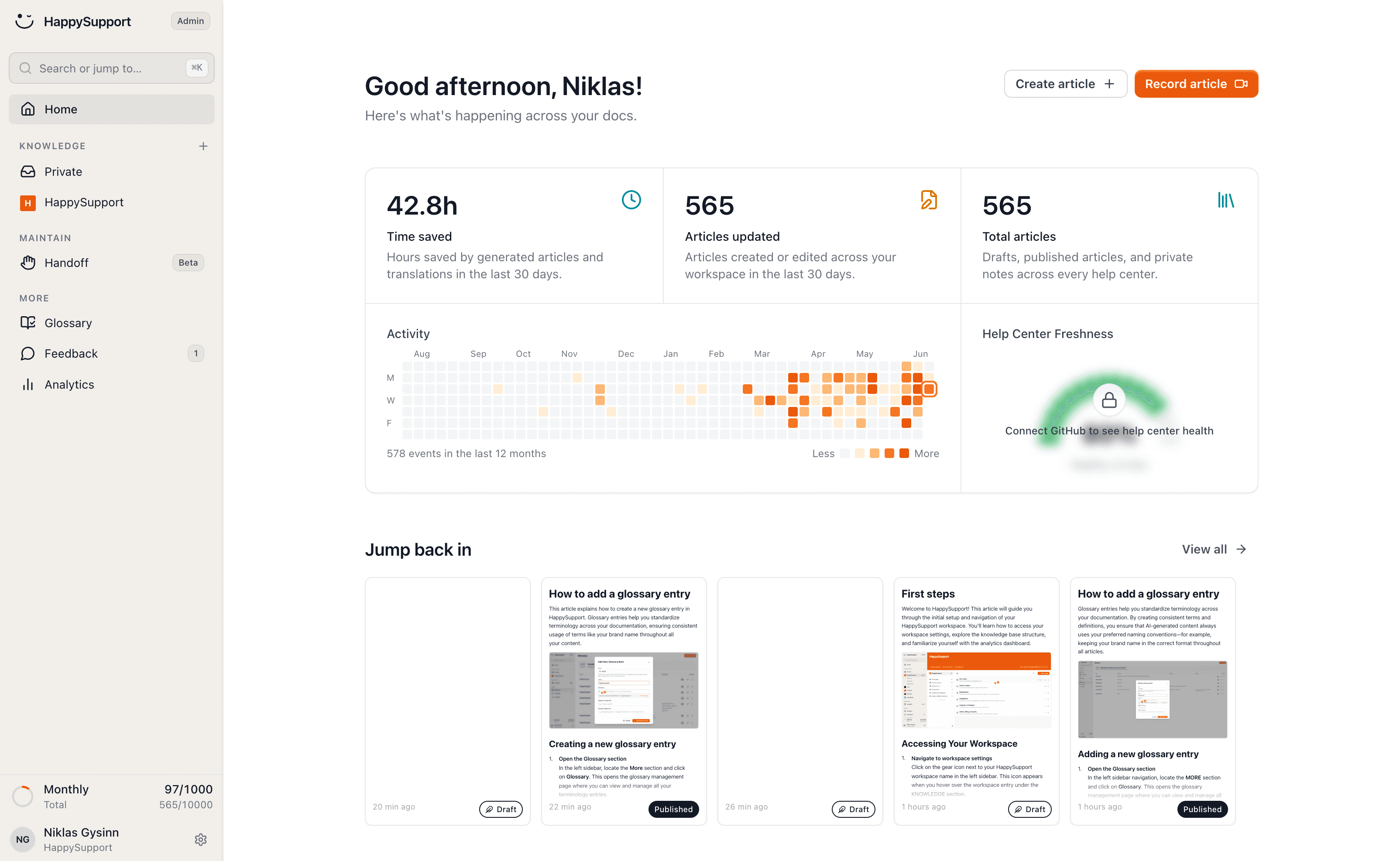
HappyRecorder is HappySupport's chrome extension help center recorder. It captures DOM/CSS references during recording, stores them as structured data, and renders screenshots at view time. When a developer ships a UI change, HappyAgent (the GitHub Sync component) flags the affected help articles automatically. The team reviews flagged articles instead of guessing which ones drifted.
This matters most for SaaS teams shipping weekly without a dedicated documentation hire. The chrome extension itself is the easy part: every recorder ships a chrome extension. The structural data layer underneath is what makes the difference between a help center that ages well and one that needs a rebuild every nine months. For more on the architecture, see our breakdown of DOM/CSS recording versus screenshot capture and our overview of how a self-updating help center works. The category of "chrome extension help center recorder" is crowded. The category of "chrome extension help center recorder that detects when its own articles go stale" has roughly one entrant at the time of writing.
 Book a demo